
Straight into a Mac folder
Photos land in ~/Pictures/Beamroll/YYYY-MM-DD/. The same photo is never written twice.
An iPhone app and a Mac app
Never passes through a cloud. No account to sign up for.Beamroll puts the photos you choose on your iPhone straight into ~/Pictures/Beamroll/YYYY-MM-DD/ on a Mac on the same Wi-Fi.
Features
Beamroll is an iPhone app and a Mac app that put iPhone photos straight into a folder on a Mac on the same Wi-Fi.
Photos land in ~/Pictures/Beamroll/YYYY-MM-DD/. The same photo is never written twice.
The iPhone reads text before sending. Photos with text also get a .txt with the same name.
Only the photos you choose, and the one shot you take with the app’s shutter.
Scan the QR shown in the Mac menu with your iPhone.
TLS 1.2 with ECDHE_PSK. A peer with a different key is cut off at the start.
An easy transfer screen
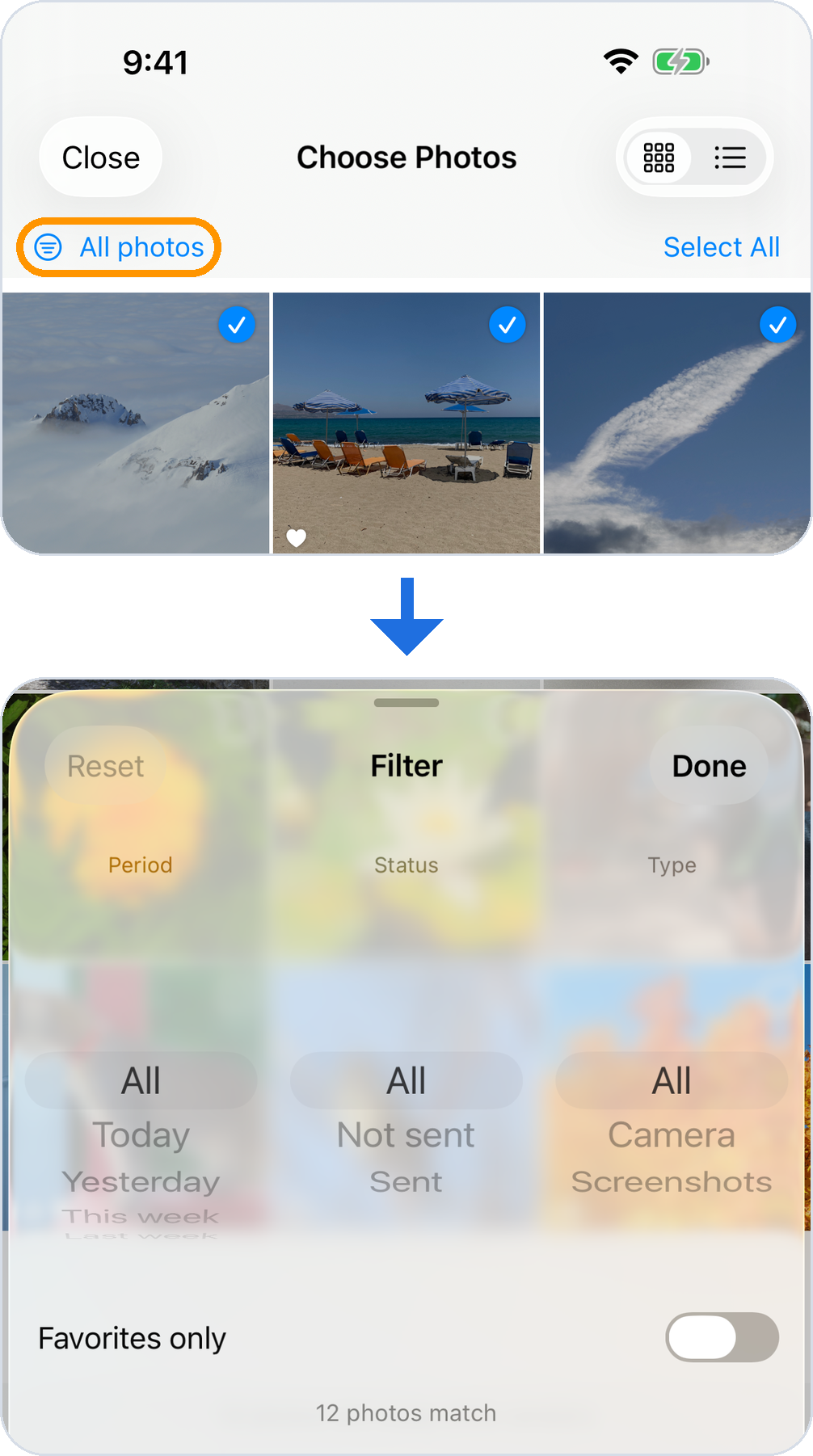
Pick photos in a grid or a list.
“All photos” at the left of the bar above the photos is a button. Tap it and the filter sheet opens: pick a period (Today, Yesterday, This week, Last week, This month, Last month, or Pick dates), a status (Not sent / Sent) and a type (Camera / Screenshots) on the wheels, or switch to favorites only.
Once a filter is on, the button shows what it is filtering by.
How it works
“Connect an iPhone” from Beamroll in the menu bar.
“Scan the Mac’s QR”, then confirm.
“Choose Photos to Send”, pick them, and tap Send.
Photos and their .txt in ~/Pictures/Beamroll/YYYY-MM-DD/.
How it connects
No cloud, and no server of ours, in between. The dashed frame is your home or office Wi-Fi (LAN).
The Mac makes a 32-byte key and shows a QR holding the key and the Mac’s address. Once the iPhone scans it, it talks only to that Mac.
When sending, the iPhone looks for the Mac by name on the same network (Bonjour), or falls back to the address in the QR. Only home and office LAN addresses are used.
The connection is encrypted with TLS 1.2 ECDHE_PSK. A device with the wrong key is cut off at the handshake, and nothing is written. With forward secrecy, past traffic stays unreadable even if the key leaks later.
Photos land in ~/Pictures/Beamroll/year-month-day/, with a .txt of the same name when there is text. The same photo is never written twice.
If a photo’s original is only in iCloud Photos, the iPhone fetches it from Apple first, then sends it.
Privacy
Photos and the text read from them go only to the Mac you connected. They are not sent to the operator’s servers.
Pricing
¥0
One-time
¥500
In-app purchase in Japan; the App Store shows the price for your region
FAQ
It puts the photos you pick on your iPhone straight into a folder on a Mac on the same Wi-Fi. You use an iPhone app and a Mac app together. Photos go directly from the iPhone to the Mac without passing through a cloud service, and there is no account to sign up for.
In ~/Pictures/Beamroll/YYYY-MM-DD/. The date is the day you sent the photo (by your iPhone’s calendar). The same photo is never written twice.
Before sending, the iPhone reads any text in the photo. If a photo has text, a .txt file with the same name is placed next to it in the same date folder. Photos without text get no .txt. Reading targets Japanese and English.
No. It sends only the photos you choose on the transfer screen and the one shot you take with the app’s own shutter. There is no automatic sending in the background.
Open “Connect an iPhone” from Beamroll in the Mac menu bar to show a QR. On the iPhone, tap “Scan the Mac’s QR”, scan it, and confirm. If the iPhone cannot scan QR codes, use “Copy Invitation URL” on the Mac and paste it on the iPhone.
Yes. It uses TLS 1.2 with ECDHE_PSK. The Mac creates the key and hands it to the iPhone through the QR. A peer with a different key is cut off at the start of the connection, and nothing is written. Invitations can only carry home or office LAN addresses.
Choose “New Key…” in the Mac menu. Every iPhone that was connected will need to scan the new QR.
Yes. If the full-size data of a photo is not on the iPhone, the iPhone first downloads it from iCloud before sending (that download is between the iPhone and Apple’s iCloud).
It is free to use. The free version sends up to 10 photos a day. Buying Pro (a one-time in-app purchase; ¥500 in Japan, and the App Store shows the price for your region) removes that limit. The limit is the only thing Pro changes; every other feature is the same as in the free version.
Beamroll sends as many as you have left for the day, oldest first. The rest stay selected and are not sent, so you can send them tomorrow or after buying Pro. The count is the number of photos newly placed on the Mac (resending a photo the Mac already has doesn’t count, nor do the text .txt files), and it resets at midnight in the iPhone’s time zone.
An iPhone with iOS 17.0 or later and a Mac with macOS 14.0 or later, connected to the same network (Wi-Fi). The app is available in English and Japanese.
Get it